

Need to add documents to IEC application? Learn how to upload files after submission and avoid common mistakes. This happens all the time with IEC applicants, especially if you weren’t able to get your police certificate in time. You’ll have to upload your additional documents at a later date. Here’s how it works.

First of all, be sure that you upload all of your IEC required documents when you submit your application for the first time. In this article, we’re explaining how to upload additional documents that are requested, but if you forget a required document in the initial stage, then your application will likely be refused. You won’t have the chance to upload the document at a later date. If you’re refused and remain eligible for IEC, you may re-enter the pool for your country and category — but there is no guarantee you will receive another invitation to apply.
If you need to add Documents to IEC Application after you’ve submitted, you will receive an official request by Immigration, Refugees, and Citizenship Canada (IRCC). While IRCC is processing your application, you should check your account regularly, just to be sure you haven’t missed a request.
Step-by-step instructions on uploading a document after submitting
Follow these step-by-step instructions on how to upload your document:
- Sign in to your IRCC account.
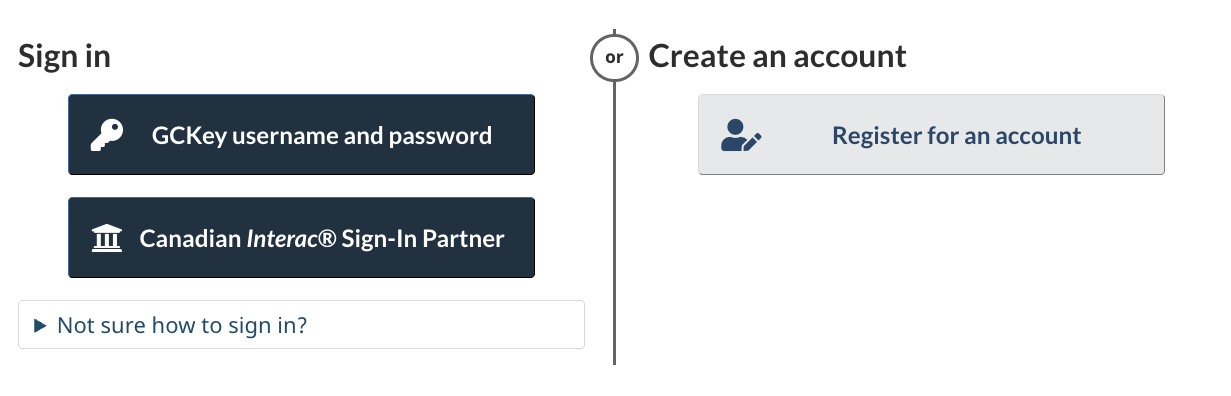
- Find your application under the heading “View my submitted applications or profiles”.
- Under the “Action” column click “Check full application status”, which takes you to a page with your “Work permit application status”.
- On this page click “View submitted application or upload documents”.
- You should now be able to view the “Documents submitted by the client”.
- Click “Upload file” in the “options” column.
- Fill out the required information and click “next” to select your file for upload.
- Once the file is uploaded, click on “Return to your documents” to check that your document has been uploaded. This is not the last step!
- Back on the “Documents submitted by the client” page, be sure that the “Details” column shows the message “Uploaded – not submitted to IRCC”.
- Click “Next”.
- You will then be prompted to sign by entering your first name and last name.
- Once you’ve signed, click “Submit” to complete the submission.
Once your document has been submitted, be sure you check your account periodically, in case IRCC has sent any new updates. We hope you hear good news about your application!
Related articles

CRS Reforms Are Coming. But Is IRCC Missing the Bigger Economic Picture?
Read more

IEC 2026 Season Closing October 19
Read more

2,500 CEC Candidates Invited in October 15 Express Entry Draw
Read more

New Brunswick Eases Occupation Restrictions for Atlantic Immigration Program (AIP)
Read more
About the author